


The ability to convert a flat image into a fully detailed 3D model used to require years of training and expensive software. Tripo AI is changing that. Whether you’re a game developer, product designer, educator, or hobbyist, Tripo3D.AI lets you generate high-resolution 3d model from image nothing more than a photo or a text description — in minutes.
This guide walks you through everything you need to know how to get started, which images work best, how to export your models, and what you can actually do with them.
What Is Tripo AI?
Tripo AI is an AI-powered 3D model generation platform that analyzes images and text prompts to produce detailed, textured 3D objects. Unlike traditional 3D modeling tools that require manual sculpting, rigging, and UV mapping, Tripo3DAI handles the heavy lifting automatically.
At its core, the platform uses deep learning to interpret shapes, shadows, and surface textures from input images. The result is a 3D mesh that closely mirrors the original reference — complete with geometry and surface detail that would take a skilled artist hours to replicate by hand.
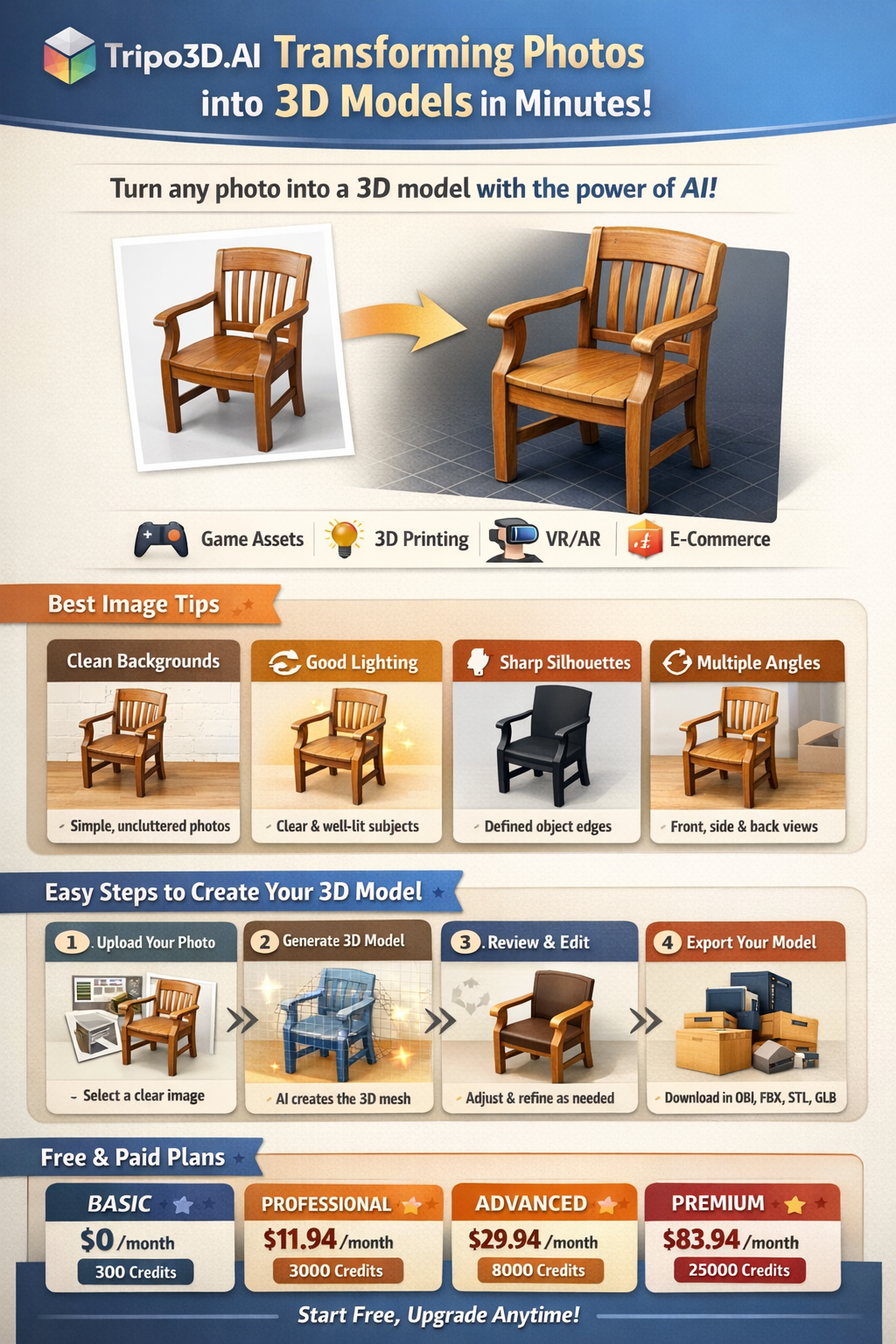
Key use cases include:
- Game asset creation — Generate props, characters, and environments rapidly.
- 3D printing — Export print-ready models from product photos or sketches.
- Virtual and augmented reality — Populate VR/AR scenes with AI-generated assets.
- E-commerce — Create 3D product visualizations from standard photography.
- Education and research — Build 3D representations of real-world objects quickly.
What Image Types Work Best with Tripo AI?
The quality of your output is directly tied to the quality and clarity of your input. Here’s what to keep in mind before you upload:
- Clean backgrounds are essential.
Images with plain white or solid-colored backgrounds allow Tripo AI to isolate the subject more accurately. Cluttered scenes can confuse the model and introduce artifacts in the 3D mesh.
- Good lighting reveals form.
Well-lit subjects with visible shadows help the AI understand the three-dimensional structure of an object. Flat, overexposed images tend to produce less accurate models.
- Sharp silhouettes improve geometry.
Objects with clearly defined edges — like product photos or illustrations — generate cleaner meshes than blurry or motion-affected images.
- Multiple angles supercharge results.
If you have the option to upload multiple views of the same object (front, side, back), doing so gives Tripo3DAI a much richer understanding of the shape and dramatically improves accuracy.
- Supported file types
generally, include JPG, PNG, and WebP. For best results, use PNG files with transparent backgrounds when available.
Step-by-Step: How to Convert an Image to a 3D Model Using TripoAI
Here is a straightforward walkthrough to generate your first image to 3d model using Tripo AI:
- Create an account – Head to the Tripo3D.AI platform and sign up for a free account. No credit card is required to get started with the basic tier.
- Choose your input method – Tripo AI supports two primary input types: image upload and text prompt. For image-to-3D conversion, select the image upload option.
- Upload your reference image – Select and upload a clean, well-lit image of your subject. You can optionally add a text description alongside the image to guide the generation further — for example, “a wooden chair with curved armrests.”
- Configure generation settings – Choose your desired output resolution and quality level. Higher-quality outputs consume more credits but produce finer geometry and texture detail.
- Generate and review – Click generate and wait for the model to process (usually under two minutes). Once done, preview your 3D model in the built-in viewer, rotating it to inspect all angles.
- Edit if needed – Tripo3D.AI offers post-generation controls that allow you to refine geometry, adjust textures, or re-generate specific parts of the model.
- Export your model – Download the finished model in your preferred format (see export section below).
Tips for Getting Better Results
The difference between an average output and a high-quality 3d model from image often comes down to a few simple refinements:
- Use product photography standards: shoot your subject against a clean backdrop, use soft diffused lighting, and ensure the whole object is in frame.
- Avoid extreme perspectives: straight-on or slightly angled shots tend to yield better geometry than top-down or extreme close-ups.
- Combine image and text input: adding a descriptive text prompt helps Tripo3DAI fill in any ambiguous details the image alone may not convey clearly.
- Iterate: don’t be discouraged by imperfect first results. Adjusting your image crop, lighting, or text description and regenerating often yields significantly better output.
- Start with simple objects: if you’re new to the platform, practice with objects that have clear, defined shapes — shoes, mugs, tools — before tackling complex organic forms like faces or plants.
Export Formats and Where to Use Them
Once you’re happy with your model, Tripo AI lets you export in several industry-standard formats:
-
OBJ (.obj)
— The most universally compatible format. Use it when importing into Blender, Maya, Cinema 4D, or most other 3D software for further editing.
-
FBX (.fbx)
— The preferred format for game engines like Unity and Unreal Engine. Supports embedded textures and skeletal animation data.
-
STL (.stl)
— The standard format for 3D printing. Use this when you plan to send your model to a printer or slicing software like Cura or PrusaSlicer.
-
GLTF/GLB
— Ideal for web-based 3D viewers, AR applications, and lightweight real-time rendering. GLB is the binary, single-file version of GLTF.
Choose your format based on where the model will ultimately be used. If in doubt, OBJ is the safest all-purpose choice for further editing, while GLB is best for direct web or AR deployment.
Tripo3D.AI Free vs. Paid Plans
Tripo3D AI operates on a credit-based system. Here’s a general breakdown of what each tier offers:
Basic
$0.0 / Month
Included
- 300 credits monthly
- 1 concurrent task
- 1 trial Model generation with Tripo v3.0 Ultra
- 1-day history record saved
- 20 models stored
- Limited model downloads
- Limited queue priority
- Public models, under CC BY 4.0 license
Professional
$11.94 / Month $19.9
$143.28 / year
Included
- 3000 credits monthly
- 10 concurrent tasks
- Multi-view and batch generation
- One-click generation of part models
- Part segmentation and completion
- Smart Low Poly
- 3 free retries per model
- Top queue priority
- Private models, commercially use available
- Model generation with Tripo v3.0 Ultra
- Exclusive features
Advanced
$29.94 / Month $49.9
$359.28 / year
Included
- 8000 credits monthly
- 15 concurrent tasks
- Multi-view and batch generation
- One-click generation of part models
- Part segmentation and completion
- Smart Low Poly
- 10 free retries per model
- Top queue priority
- Private models, commercially use available
- Model generation with Tripo v3.0 Ultra
- Exclusive features
Premium
$83.94 / Month $139.9
$1007.28 / year
Included
- 25000 credits monthly
- 20 concurrent tasks
- Multi-view and batch generation
- One-click generation of part models
- Part segmentation and completion
- Smart Low Poly
- Unlimited free retries per model
- Top queue priority
- Private models, commercially use available
- Model generation with Tripo v3.0 Ultra
- Exclusive features
For professionals or studios generating models at scale, the paid plans offer significantly better value — particularly when used for commercial projects where export quality and licensing are important.
Final Thoughts
Tripo AI represents a meaningful shift in how 3D content gets created. What once required specialized skills, expensive software, and hours of work can now be accomplished in a few clicks. Whether you’re prototyping a product, building a game, or simply exploring what AI-assisted creativity looks like, Tripo AI is a powerful and accessible starting point.
The key to getting the most from it is quality input: clean images, thoughtful prompts, and a willingness to iterate. With those elements in place, the results can be genuinely impressive — and the workflow fits naturally into most creative pipelines. Start with the free plan to get a feel for the platform, then scale up as your projects demand. The barrier to high-quality 3D modeling has never been lower.
Frequently Asked Questions
Q1. Is Tripo AI free to use?
Yes, Tripo AI offers a free plan with a limited number of monthly credits, which is enough for casual use and experimentation. For commercial projects or higher-resolution exports without watermarks, paid plans are available with more credits and advanced features.
Q2. What image formats does Tripo AI support for input?
Tripo AI generally supports JPG, PNG, and WebP image formats. For the best output quality, PNG files with a transparent or plain white background are recommended, as they help the AI isolate the subject more accurately.
Q3. How long does it take to generate a 3D model with Tripo3D AI?
Most models are generated within few minutes, depending on the complexity of the input image and the output quality setting you choose. Higher-resolution generations may take slightly longer, especially during peak usage times.
Q4. Can I use Tripo AI models for commercial projects?
Yes, models generated on paid plans can generally be used for commercial purposes. However, it’s always recommended to review Tripo AI’s current Terms of Service directly, as licensing terms can vary by plan and may be updated over time.
Q5. What 3D file formats can I export from Tripo AI?
It supports several industry-standard export formats including OBJ, FBX, STL, and GLTF/GLB. OBJ works best for general editing in tools like Blender, FBX is ideal for game engines like Unity or Unreal, STL is used for 3D printing, and GLB is great for web and AR applications.
Q6. Do I need any 3D modeling experience to use Tripo3D AI?
No prior 3D modeling experience is required. Tripo AI is designed to be beginner-friendly — you simply upload an image or type a text description, and the platform generates the model automatically. That said, some basic knowledge of 3D file formats will help you make better use of the exported models.
